


Did you know that you can work in the familiar Windows environment, and beyond, from your smartphone or tablet while traveling?
We'll explain how to connect to a remote desktop from different devices in a guide.
Table of contents

application for iPhone
application for Android
Windows
Do you have a file to connect or a link to it?
- Download the sent file (e.g. Server.RDP) from the attachment (letter with connection information) and save it on your desktop.
If you have a link to download the file via Google Drive, click on the arrow in the upper right corner: - После того как файл для подключения создан, подключитесь с вашим логином-паролем. При первом запуске поставьте в окне галочку — больше не показывать и жмите ДА
Если файла, ссылки или письма нет — перейти к п. 3
Creating a connection file yourself
- right-click on start, select search or find

- write, depending on the language of the system: "connection" or "remote"

- We select the connection to the remote desktop.
type the server address:
Жмем “Показать параметры”
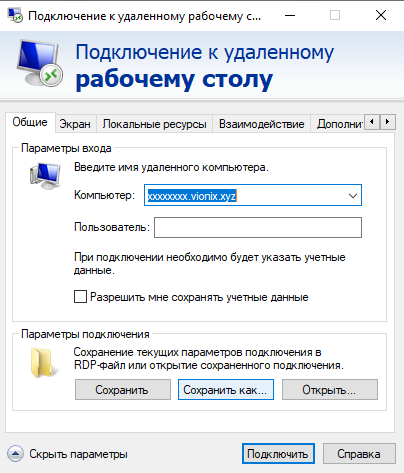
Enter the user name (account or login)
- Click “Save As,” enter a file name (e.g. Server) and save to your desktop.
- Connect with your username and password and check the box in the window:

- Double-click on the created connection and, if everything is OK, you will be taken to your desktop.
While working, the remote desktop can be minimized or closed using the panel at the top:
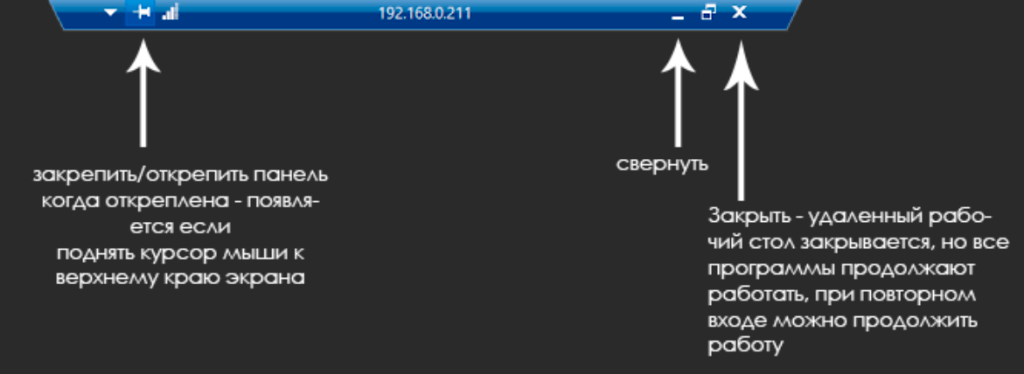
You can also move the panel around, positioning it wherever you like on the screen. To do this, simply drag the panel left or right with your mouse.
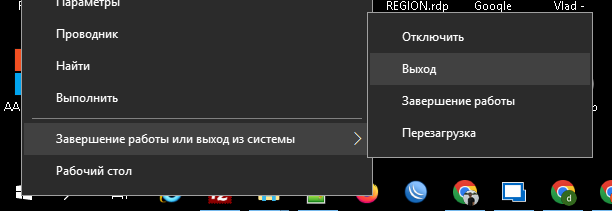
If you have finished work and do not plan to log on to the server today, it is advisable to completely end the session: Right-click on Start -> Shutdown or exit... -> Exit:
If you work after 18:30, there may be a period when the server may be “slow”.
This means that the backup process has started. It is better not to work at this time.
For MAC OS and For iOS
- Download the application Microsoft Remote Desktop
https://apps.apple.com/app/microsoft-remote-desktop/id714464092
- После установки нужно добавить новый компьютер (в программе нажать плюс, добавить desktop или ADD -> PC)

- Enter the address: xxxxxxxxx.vionix.xyz:1XX10 (sent by email)

- Add an account. In the drop-down list, select the corresponding item and enter your login and password, click "Add" or "add" at the bottom

Android
Download and install the application Microsoft Remote Desktop
https://play.google.com/store/apps/details?id=com.microsoft.rdc.androidx
Add a connection similar to the instructions for iOS