


How do you know where to look if you're getting kicked out of a remote desktop (or remote work, or RDP, or 1C, as accountants call it)? Often in such situations, it seems like the problem is server-side. In practice, in most cases, the cause is elsewhere entirely.
The most common and banal reason for this behaviour is not the server at all, but the user's Internet channel.
What should you do if you are kicked out of the remote desktop and a message like this appears:
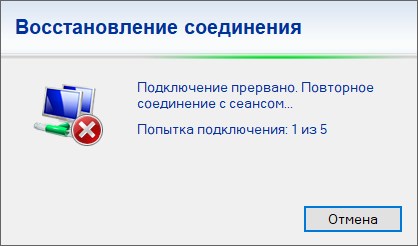
Step 1. Diagnose your Internet connection.
- Press the Win+R key combination (or right-click on Start and select Run), type cmd in the small window and press Enter
In the black window, type the following text:
ping 8.8.8.8 -t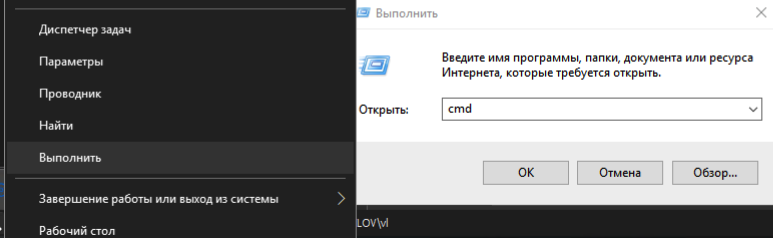
And press Enter
Monitor the diagnostics process. If you're frequently disconnected from the remote desktop, you're likely experiencing connection drops and/or lags, and you'll see them immediately. If it's not very frequent but is annoying, leave the black window open and continue working. As soon as you're disconnected again and the remote desktop is no longer accessible, immediately return to the command prompt (the black window) and monitor the ping process. The window might look something like this:
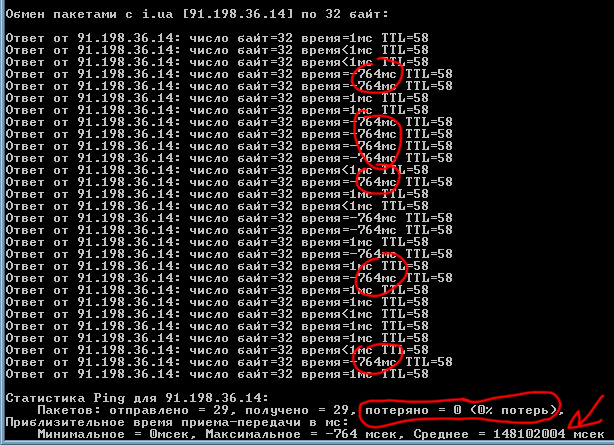
The connection delays that cause connection issues with the server are circled in red. The higher the delay and the greater the value, the worse the connection and the more often you'll be disconnected from the remote desktop. Connection interruptions, which look like this, are especially problematic:
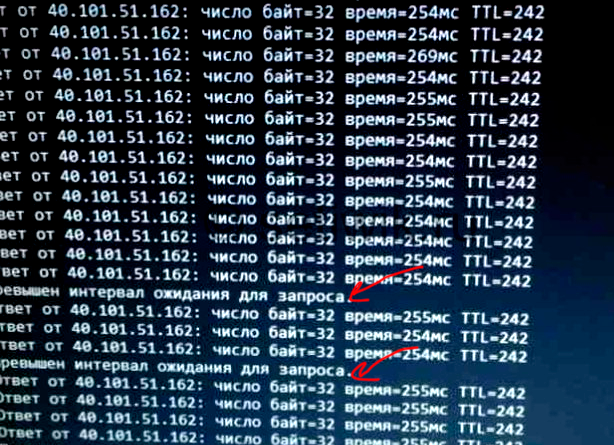
These are clear signs of a poor internet connection, which will prevent you from working properly and will constantly cause you to be kicked out of your remote desktop.
What to do if you realize the problem is with the Internet:
- Reboot the router and check all connections. Often, the cable may be damaged, loosely connected, or poorly crimped. Check all the wires if you have a cable connection.
- If you are using Wi-Fi, try connecting with a cable and testing with ping again.
- If you can't connect via cable, try changing the Wi-Fi channel in your router settings (if you have access and experience).
- Bring your computer, laptop, or tablet closer to the router. Walls are especially bad for signal transmission, and sometimes even large, lush plants or large containers filled with liquid, such as a large aquarium, in the Wi-Fi path will practically drown out the signal.
- Reduce the load on your Wi-Fi by turning off several devices, such as your TV or other laptops and smartphones, that don't require internet access during the diagnostics.
- If after these manipulations you still experience disconnections, contact your Internet provider and report the problem.
- If your internet connection is poor and you need to connect to a remote desktop, use mobile data. To do this, enable the hotspot feature on your smartphone and connect to Wi-Fi using the network name and password from the mobile hotspot settings.
If you're unsure where exactly the problem is—on the internet, your computer, or the server—we'll help you figure it out and provide recommendations, even if the server isn't the cause.
Finally: don't tolerate such inconveniences. If you're getting kicked out of your remote desktop frequently, regularly, and it's interfering with your work, contact your service providers: your internet provider, your cloud server provider, or, if applicable, your system administrator. This will save you time and frustration when using your remote desktop and all computer systems in general.
RDP connection drops are one of the most common issues when working with Remote Desktop and 1C. If you're kicked out of remote work, a connection error appears, or the 1C session is terminated without reason, in most cases it's due to the user's internet connection. Unstable Wi-Fi, packet loss, network latency, and disconnections directly impact remote desktop performance. Checking the connection with ping allows you to quickly determine if there are issues with the internet channel and why RDP disconnects during operation.